Account recovery
Get back into your account
Before you start
You will receive an SMS with your Temporary Access Pass (TAP).
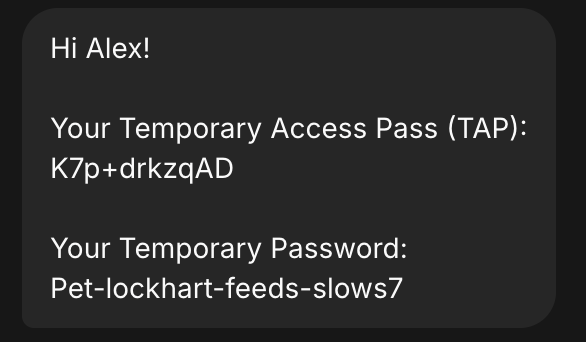
Only enter this code in the Microsoft Authenticator app. Never share it with anyone, and only approve sign-in requests you started yourself.
On your phone
-
Open the Microsoft Authenticator app on your phone.

-
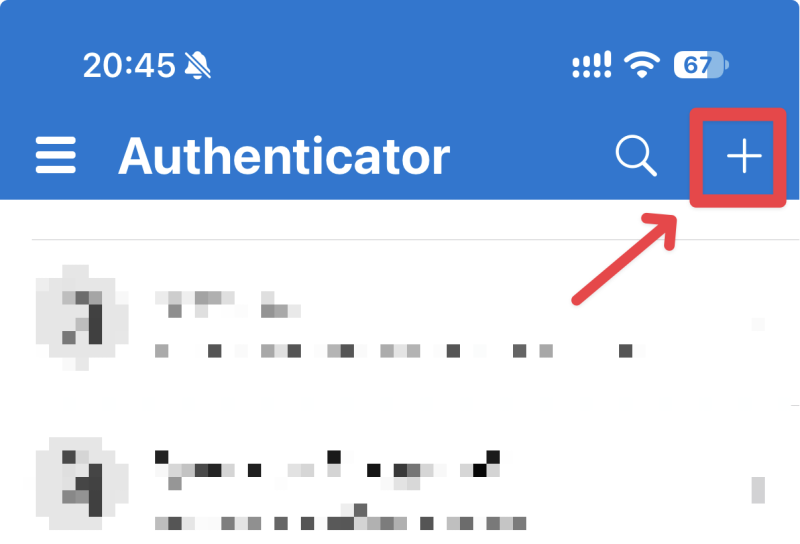
Tap + (Add account) in the top-right corner.
-
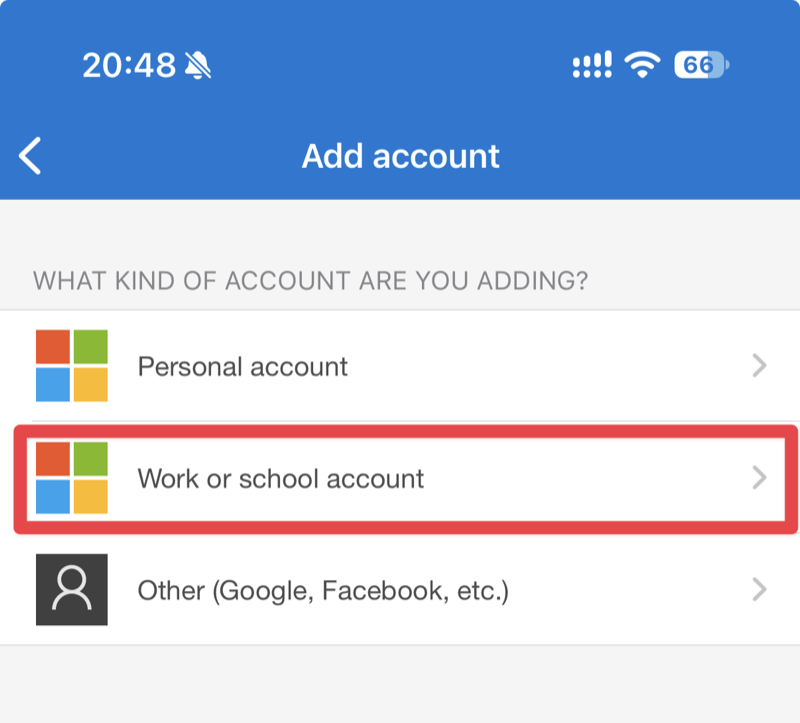
Choose Work or school account.
-
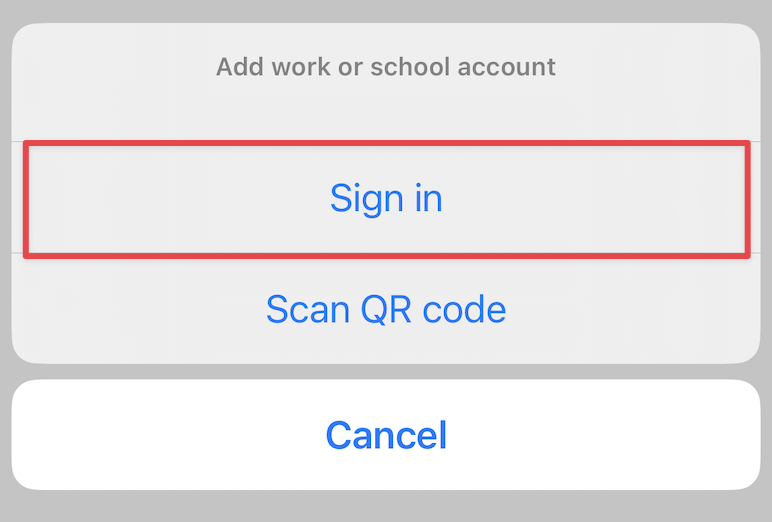
Choose Sign in.
-
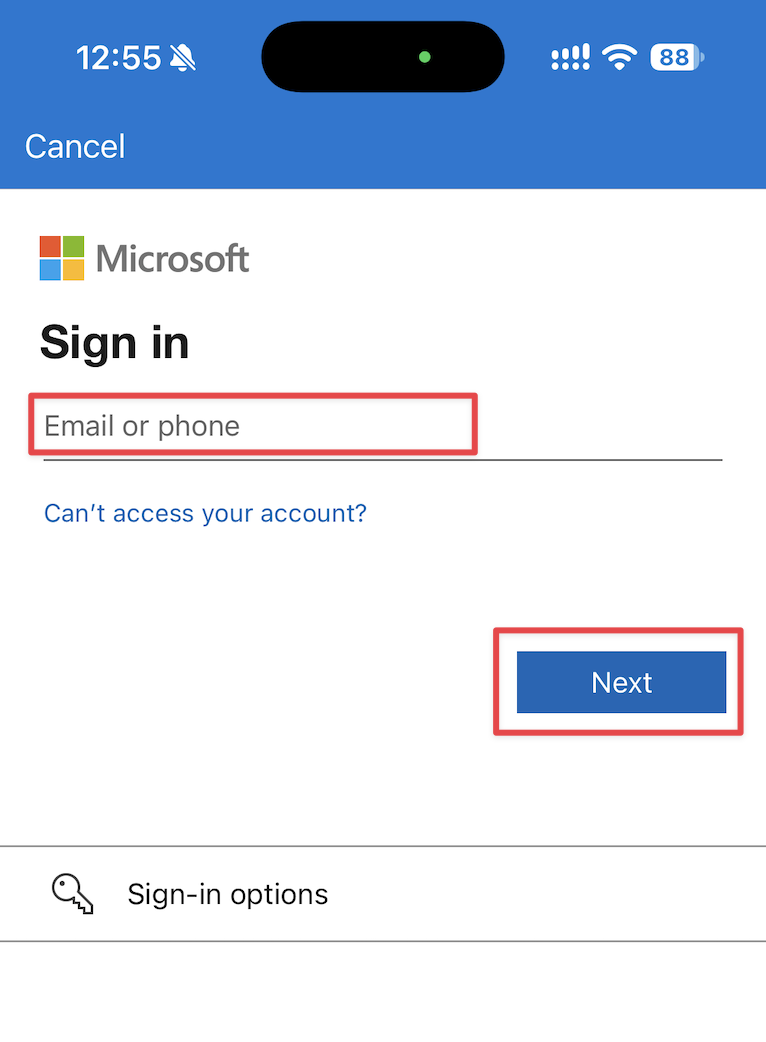
Enter your login name and tap Next.
-
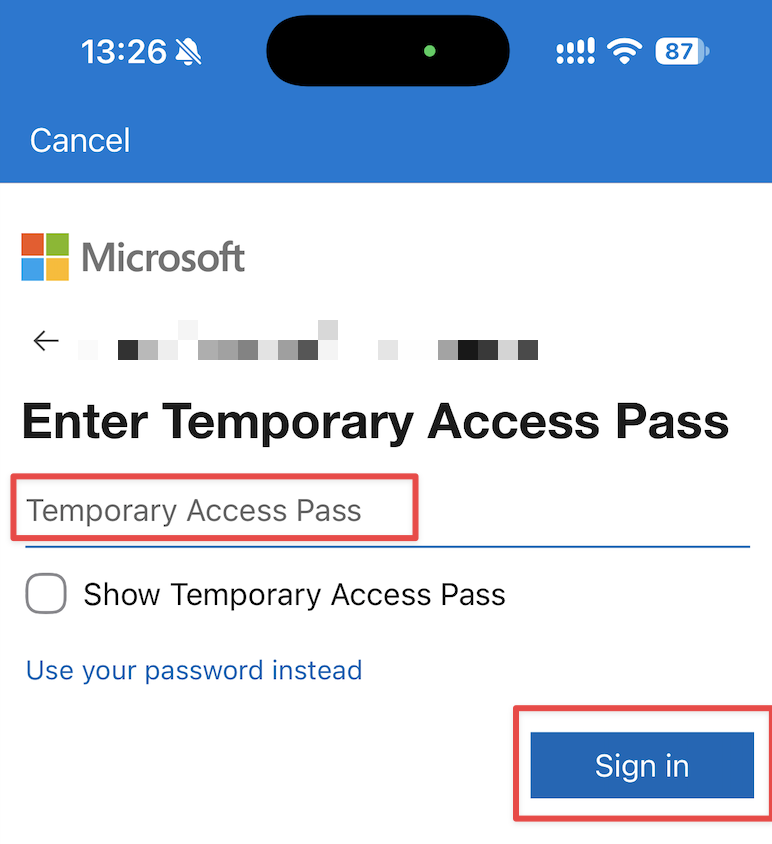
Enter the Temporary Access Pass from the SMS and tap Sign in.
-
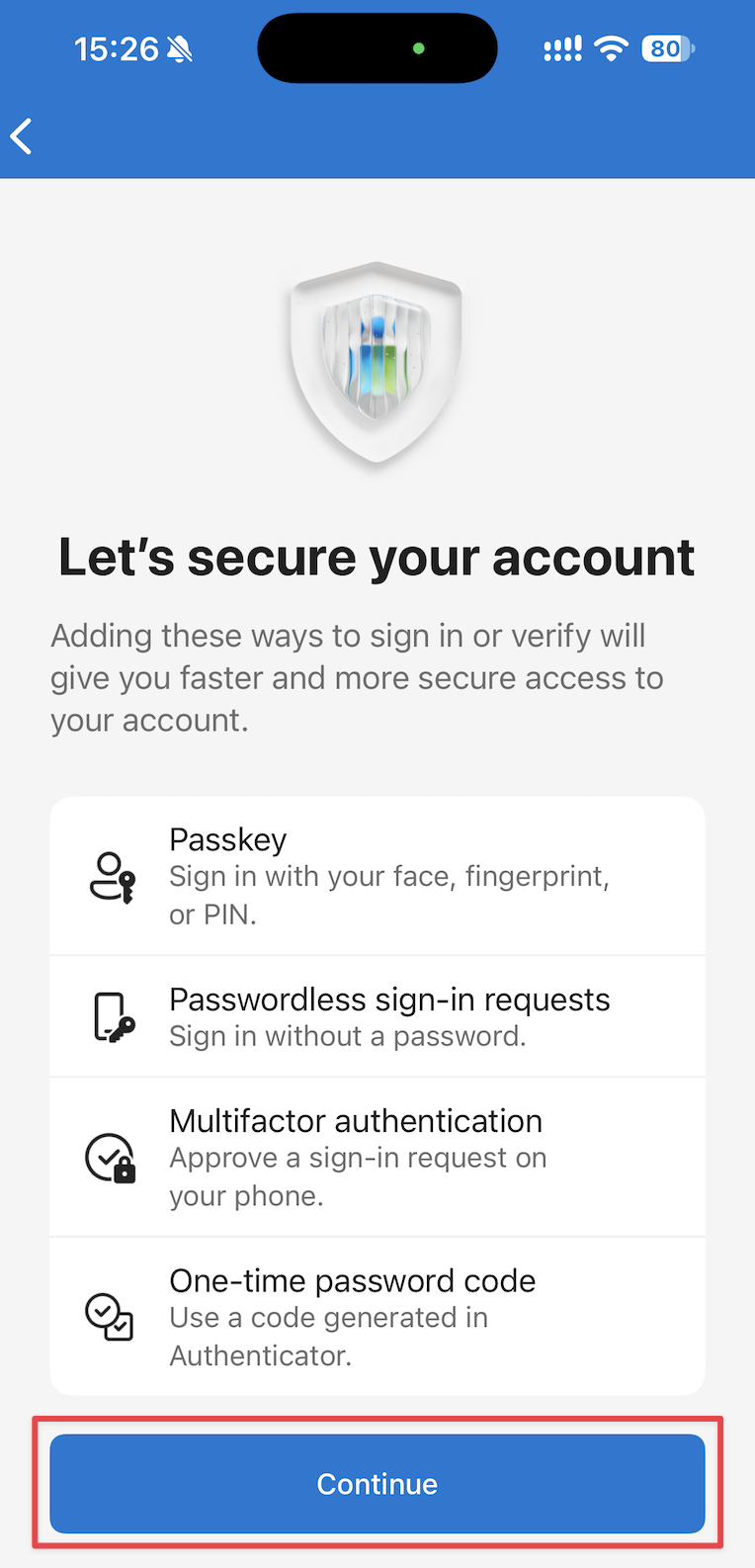
Tap Continue.
-
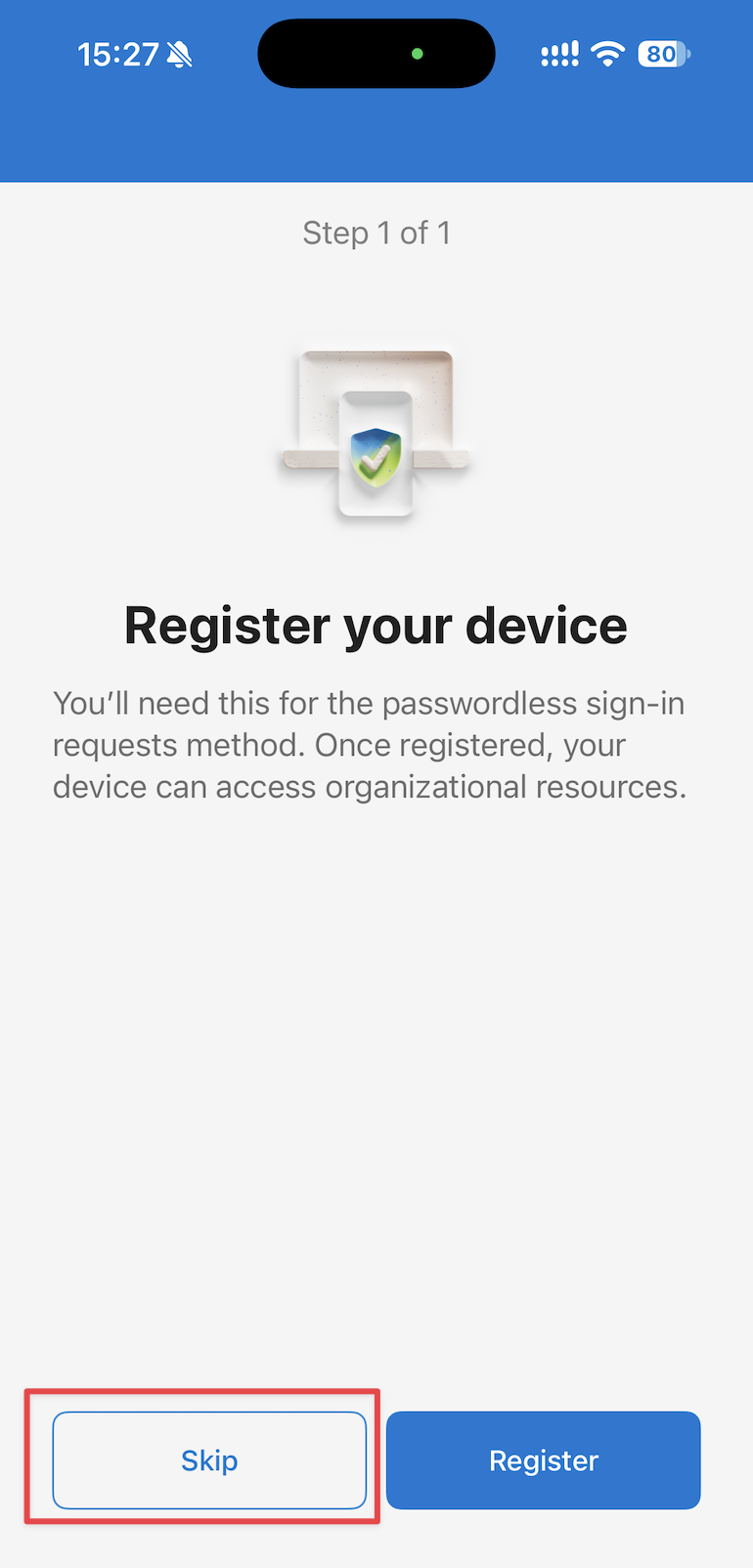
If you're asked to register your device, tap Skip.
-
If you're asked to allow creating passkeys, tap Continue (or Settings). Your phone's settings open:
- Android: In Passwords, passkeys & accounts, turn on Microsoft Authenticator. The name varies by device. If you can't find it, search Settings for Passkey.
- iPhone: In General → AutoFill & Passwords, turn on Authenticator.
Then go back to Authenticator and follow the prompts to finish.
-
Done ✅ Your account has been added to Authenticator.
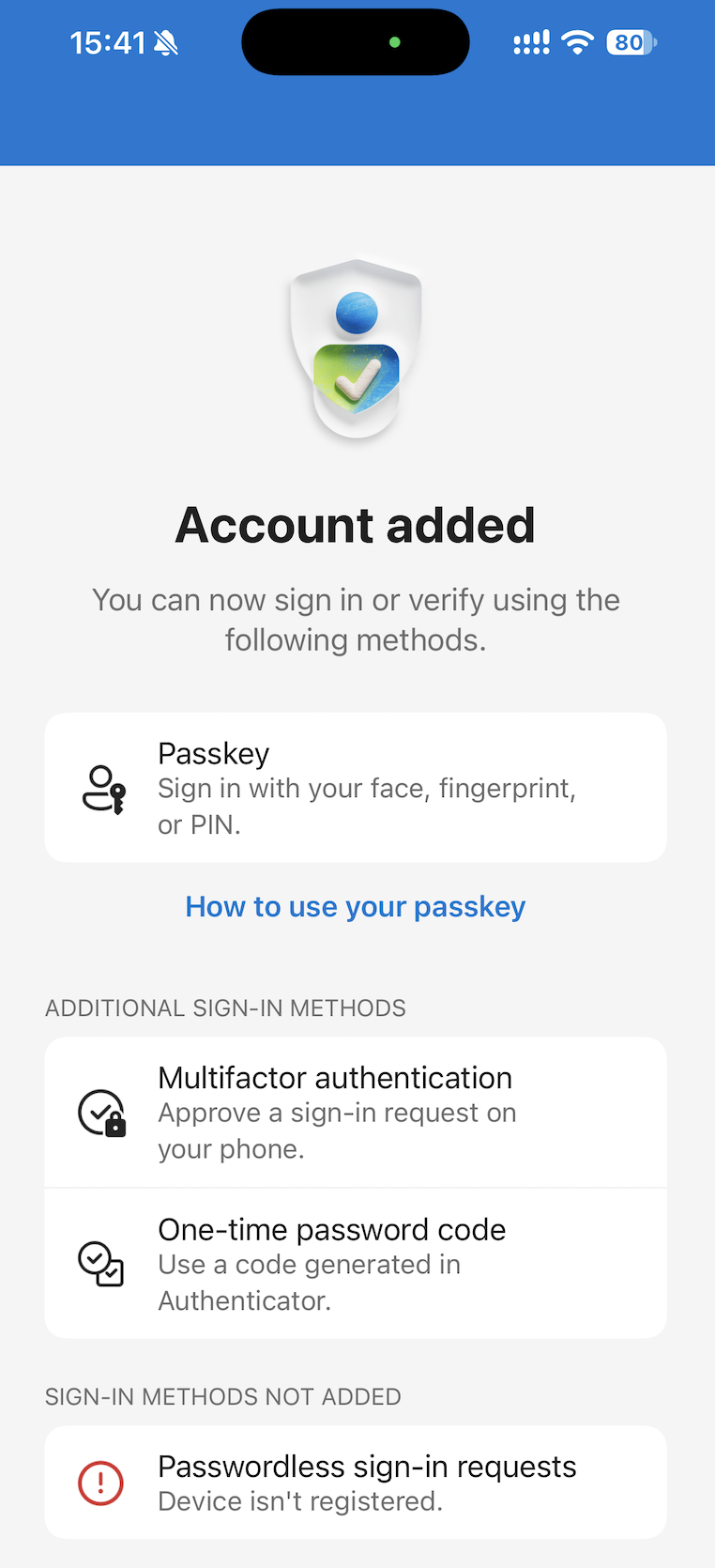
You can now sign in to other apps on your phone, using the Authenticator app for MFA when prompted.